
Renewing an Apple Pay certificate with Stripe (advanced)
Advanced article. This page details how the renewal works, the precautions to take and how to troubleshoot it. To carry out the operation, start with the simplified version in the Stripe guide, and come back here if in doubt or if something goes wrong.
The Apple Pay Payment Processing certificate that lets Stripe process the Apple Pay payments of your iOS app is valid for 25 months. It must be renewed before it expires, otherwise Apple Pay payments fail for the Merchant ID concerned.
Apple sends reminders to the Account Holder and Admin roles of the Apple Developer account 30, 15 and 7 days before expiry.
No new app version is needed. As long as the Merchant ID declared in the app stays the same, only the certificate changes. Stripe states it explicitly: "You don't need to update your app after you've replaced the certificate." (Stripe — Apple Pay Certificate Renewal)
This procedure has been applied successfully to a white-label Chargekeeper app published on the App Store: no new version released, no Apple Pay interruption. The screenshots show the Stripe dashboard in French; the button names below are given as they appear in the English interfaces where known.
How the rotation works
Two separate items are involved:
| Item | Role | Expires? | Changes during renewal? |
|---|---|---|---|
| Merchant ID | Identifies the merchant to Apple Pay. It is declared in the iOS app. | No | No |
| Apple Pay Payment Processing Certificate | Tied to the Merchant ID. Apple uses it to encrypt payment data, which Stripe decrypts. | Yes, every 25 months | Yes |
The certificate belongs to the Merchant ID, not to the app. It can therefore be replaced without touching the app.
In Chargekeeper apps, Stripe is the payment gateway for both Apple Pay and Google Pay. Stripe decrypts Apple Pay payments, so it must hold the private key matching the new certificate. That is why the certificate signing request (CSR) is generated by Stripe rather than on your Mac: Stripe keeps the private key, and Apple only receives the public key.
Google Pay does not use this certificate and is not affected by the operation.
Procedure overview:
| # | Where | Action |
|---|---|---|
| 1 | App | Check the production Merchant ID |
| 2 | Stripe | Identify the right Stripe account and the current certificate |
| 3 | Stripe | Download a new CSR |
| 4 | Apple Developer | Create the certificate from this CSR, then download the .cer |
| 5 | Stripe | Upload the .cer: both certificates are listed |
| 6 | Apple Developer | Activate the new certificate |
| 7 | App | Test Apple Pay |
The order of steps 5 and 6 is critical: the certificate must be uploaded to Stripe before it is activated at Apple.
Prerequisites
- Access to the app's Apple Developer account, with rights on Certificates, Identifiers & Profiles (Account Holder or Admin role).
- Access to the Stripe account that processes the app's payments, in live mode.
- The Merchant ID used by the production app.
- An iPhone with a real card in Wallet and the app installed from the App Store, for the final test.
- Time: Apple recommends renewing at least 30 days before expiry. The operation itself takes less than an hour.
1. Check the production Merchant ID
Before doing anything, confirm which Merchant ID the published app actually uses.
In Xcode: open the project, select the app target, then Signing & Capabilities → Apple Pay. The checked Merchant ID is the app's.
In the entitlements file (for example ios/Runner/Runner.entitlements for a Flutter app), the Merchant ID is listed under the com.apple.developer.in-app-payments key:
<key>com.apple.developer.in-app-payments</key>
<array>
    <string>merchant.com.exemple.app</string>
</array>
The same app often has a different Merchant ID per environment (development, staging, production), and therefore several entitlements files. Use the one from the production configuration.
A legacy name does not mean an active provider. A Merchant ID containing the name of a former payment provider may well be used by Stripe today. A Merchant ID's name has no technical effect. Do not create a new Merchant ID for that reason alone: it would require releasing a new version of the app.
2. Identify the Stripe account and the current certificate
The new certificate must be uploaded to the Stripe account whose publishable key the app uses. It is the only account holding the private key of the current certificate.
- In Stripe, in live mode, open Settings → Payment methods → Apple Pay (direct link).
- In the iOS certificates section, find the Merchant ID row and note its expiry date.
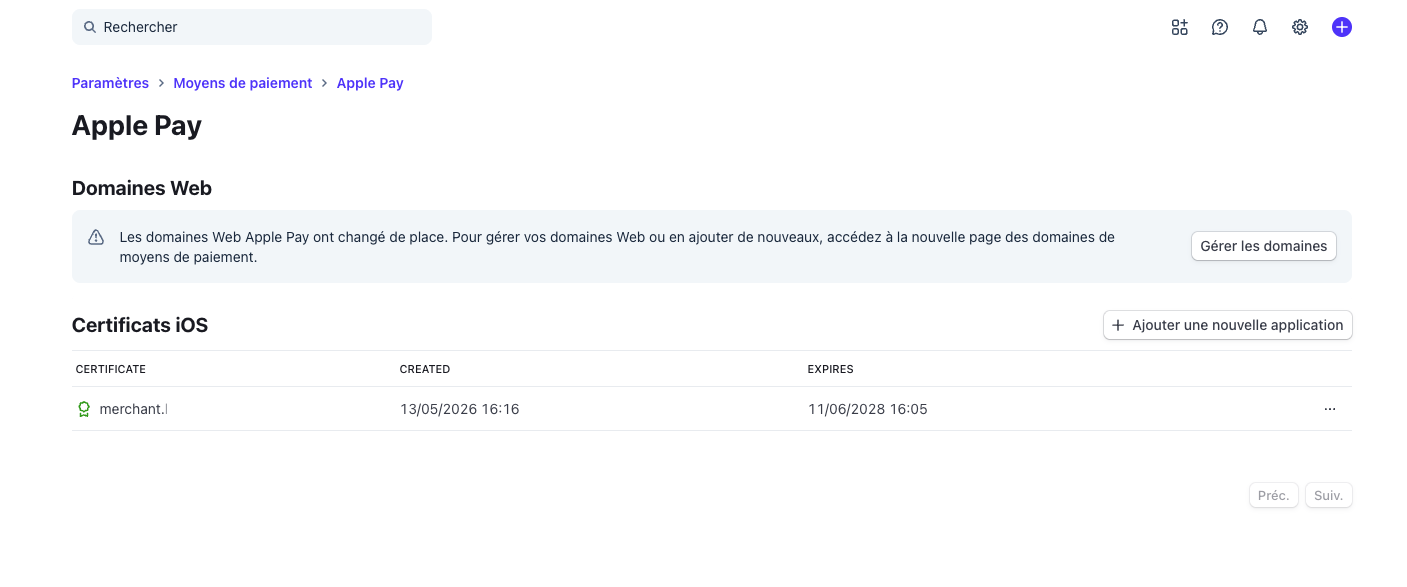
- In Apple Developer, open Certificates, Identifiers & Profiles → Identifiers, filter on Merchant IDs and open yours. The active certificate must show the same expiry date.
If the dates match, you are on the right Stripe account. If the row is missing or the dates differ, stop: the app probably uses another Stripe account.
When the Apple portal is displayed in another language, the certificate name may appear with a localized prefix (for example marchand. in French instead of merchant.): it is still the same Merchant ID.
One Merchant ID, one Stripe account. A Merchant ID has only one active payment processing certificate, and each CSR belongs to a single Stripe account. If several Stripe accounts receive Apple Pay payments with the same Merchant ID, only one of them will be able to decrypt them after the rotation.
Do not revoke anything. Revoking the active certificate (Revoke) makes Apple Pay payments fail immediately.
3. Download a new CSR from Stripe
- In Settings → Payment methods → Apple Pay, iOS certificates section, click + Add new application.
- In the Add a new certificate window, click the link to download the certificate signing request: you get the
stripe.certSigningRequestfile.
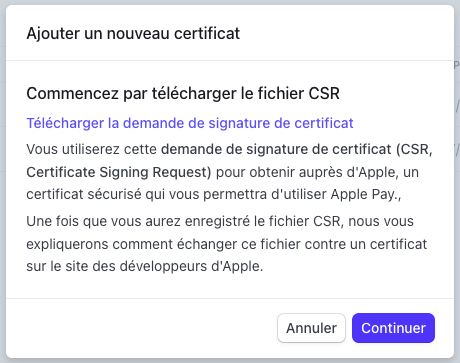
- Click Continue: Stripe summarizes what to do at Apple. Keep this window open and open the link to Apple's Developer Center in a new tab.
Warning: only use the CSR Stripe has just provided.
- Do not generate a CSR yourself with Keychain Access, OpenSSL or any other tool. Stripe would not hold the matching private key and could not decrypt payments.
- Do not reuse an old CSR downloaded from Stripe. Stripe requires a new CSR for each renewal, and a CSR can issue only one certificate.
4. Create the new certificate at Apple, without activating it
In Certificates, Identifiers & Profiles:
- Check at the top right that the selected team is the app's team.
- Click Identifiers, filter on Merchant IDs, then open the same Merchant ID as in step 2.
If a banner asks you to accept an agreement, follow the instructions before continuing. - In the Apple Pay Payment Processing Certificate section, click Create Certificate.
- Select the
stripe.certSigningRequestfile, then click Continue. - Click Download: you get the
apple_pay.cerfile.
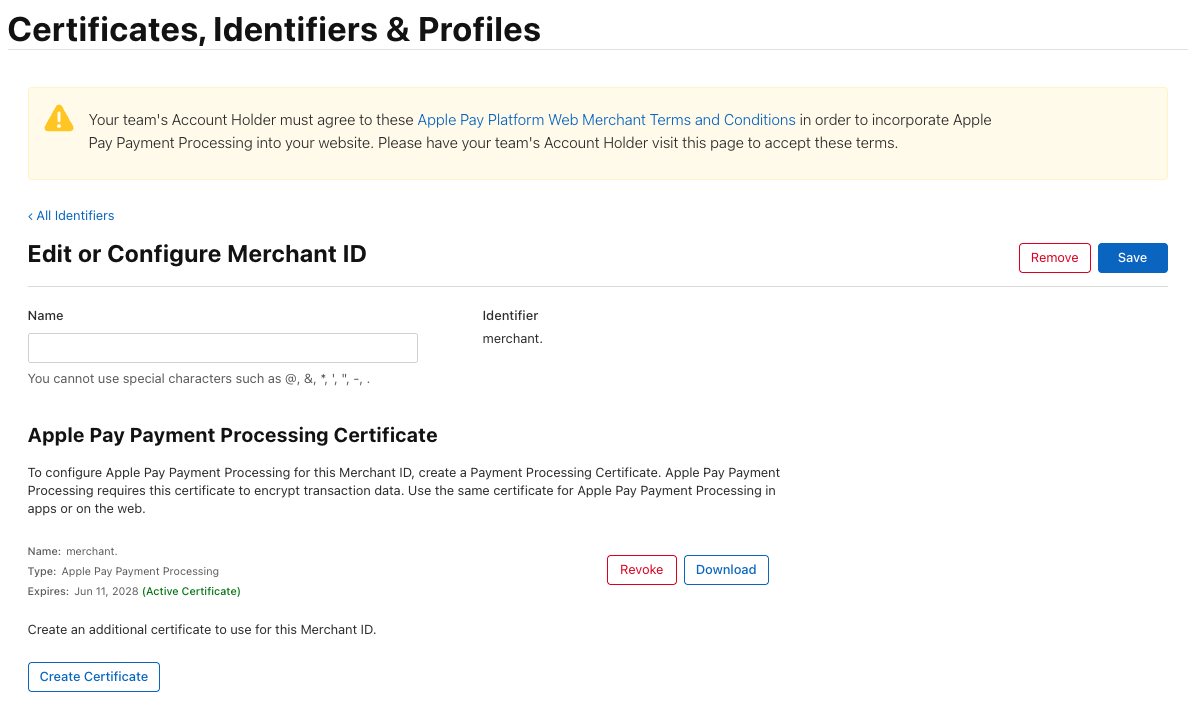
The new certificate's page then offers three buttons: Activate, Revoke and Download. Its expiry date is already shown: it is set at creation and does not change on activation.
Do not click Activate yet. Until it is activated, the new certificate is not used and the old one stays in service.
Do not install the certificate in Keychain Access. The Apple portal suggests double-clicking the
.cerfile to install it on your Mac. That instruction does not apply here: the private key is held by Stripe, and the.cerfile only needs to be uploaded to Stripe.
During this step:
- do not create a new Merchant ID;
- do not change the App ID capabilities;
- do not change the app's entitlements.
5. Upload the certificate to Stripe
- Go back to the Add a new certificate window still open in Stripe and click Continue.
- Click the button to upload a certificate, select the
apple_pay.cerfile, then click Submit.
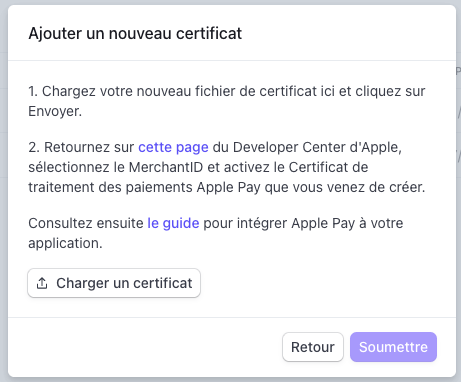
- Reload the Apple Pay page.
In iOS certificates, the Merchant ID now appears on two rows:
| Certificate | Created | Expires |
|---|---|---|
| Your Merchant ID | today's date | in about 25 months |
| Your Merchant ID | date of the old certificate | current expiry date |
Do not delete the old row. Stripe requires both the old and the new certificate to be present before activation, so that either can be used during the transition. The old certificate will expire on its own: no deletion is needed.
If the upload fails, nothing is activated yet: you can start again from step 3 with no impact on production.
6. Activate the new certificate at Apple
Only move to this step once both rows are visible in Stripe.
- In Apple Developer, open the new certificate's page. Check the expiry date to make sure you have the right certificate.
- Click Activate and note the time.
Once activated, the Activate button disappears; only Revoke and Download remain.
What happens next, according to Apple's and Stripe's documentation:
- A Merchant ID has only one active payment processing certificate at a time. Activating the new certificate immediately invalidates the old one. You therefore do not need to revoke the old certificate yourself.
- Activation is irreversible. The old certificate cannot be reactivated or restored.
- The switchover takes a little time. While the new certificate propagates across Apple Pay servers, some transactions may still be encrypted with the old key. Stripe states that Apple uses the new key approximately 5 minutes after activation. Since both certificates are present in Stripe, payments keep being decrypted during this period.
7. Test Apple Pay
The certificate being active at Apple does not prove that Stripe can decrypt payments: only a real Apple Pay payment confirms it. Wait about ten minutes after activation, then run the test.
In a Chargekeeper app, the simplest test charges nothing:
- On an iPhone with a real card in Wallet, install the app from the App Store. A development or staging build usually uses another Merchant ID and does not test the right certificate.
- Sign in with an internal account, or create one.
- In the account's payment methods, add Apple Pay: the Apple Pay sheet shows an amount of 0.00. Confirm with Face ID, Touch ID or the passcode.
- Check that the payment method is saved in the app.
The addition must be new: if Apple Pay is already saved on the account, remove it first or use another account. Stripe decrypts the Apple Pay data at the moment it is added.
For a server-side check, open Developers → Logs in Stripe: after the activation time, the POST /v1/tokens request and the SetupIntent confirmation that follows must return 200.
Then remember to delete the test account, or at least remove the payment method.
For other integrations, Stripe recommends running an Apple Pay payment with test API keys and a real card: Stripe detects test mode and does not charge it. Stripe test cards and Apple sandbox cards cannot be added to Wallet.
Do you need to republish the app on the App Store?
No, not in the scenario described here.
The iOS app contains neither the certificate nor its key. It only declares a Merchant ID in its entitlements and passes it to Apple Pay at payment time. Apple then encrypts the payment data with the Merchant ID's active certificate, and Stripe decrypts it with the matching private key.
During the renewal, nothing changes in the app:
- not the Merchant ID;
- not the Bundle ID;
- not the entitlements;
- not the Apple Pay capability;
- not the code.
Only the certificate tied to the Merchant ID is replaced, at Apple and at Stripe. No new build is therefore needed. Stripe confirms it: "You don't need to update your app after you've replaced the certificate."
A new release is only needed if the Merchant ID declared by the app changes.
What not to do
Do not create a new Merchant ID. The renewal concerns the certificate, not the Merchant ID. A new Merchant ID would require changing the app and republishing it.
Do not change the Merchant ID in Xcode. It would change the app's configuration and require a new version.
Do not use a locally generated CSR or an old Stripe CSR. Only use the CSR Stripe provides for this renewal.
Do not activate the certificate at Apple before uploading it to Stripe. Activation is immediate and irreversible. If Stripe does not have the new certificate, Apple Pay payments fail.
Do not delete the old certificate in Stripe before the switchover. Both must coexist during the transition.
Do not revoke the active certificate at Apple. Revocation makes payments fail immediately. Activating the new certificate is enough to replace the old one.
Do not wait for expiry. Renew at least 30 days in advance so you have time to test.
Troubleshooting: Apple Pay no longer works after the renewal
Check in this order:
- The Merchant ID: is the certificate's Merchant ID, in Stripe and at Apple, exactly the one declared in the app's production entitlements?
- The Stripe account: was the certificate uploaded to the Stripe account whose publishable key the app uses, in live mode?
- The certificate type: was the new certificate created in the Merchant ID's Apple Pay Payment Processing Certificate section?
- The CSR: was the certificate created from a CSR downloaded from Stripe for this renewal? If not, Stripe cannot decrypt payments. Start again from step 3 with a new Stripe CSR.
- The upload: do both Merchant ID rows appear in Stripe (iOS certificates)?
- The activation: at Apple, has the Activate button disappeared from the new certificate's page?
- The delay: was the activation more than a few minutes ago? Right after it, the switchover may still be in progress.
- The test: was it run with the App Store app (production Merchant ID) and with a new Apple Pay addition?
- The Stripe logs: in Developers → Logs, find the returned error. The message "You haven't added your Apple merchant account to Stripe" means the data was encrypted with a certificate Stripe does not know.
Do not republish the app to try to fix the problem: in this scenario, the cause lies with the certificate (Apple or Stripe), not in the app.
If the problem persists, contact support@charge-keeper.com with the Merchant ID, the activation time of the new certificate and the ID of the failed Stripe request.
