
Peer-to-peer connection
In Chargekeeper, configuring a peer-to-peer connection for roaming via the OCPI protocol allows a CPO (Charge Point Operator) and an EMSP (E-Mobility Service Provider) to collaborate and establish a direct connection between their platforms for charging access. Below is a guide to configuring these connections, with an example for each type (CPO and EMSP).
1. Peer-to-peer connection as an EMSP
This section describes how to configure a peer-to-peer connection if you are acting as an EMSP.
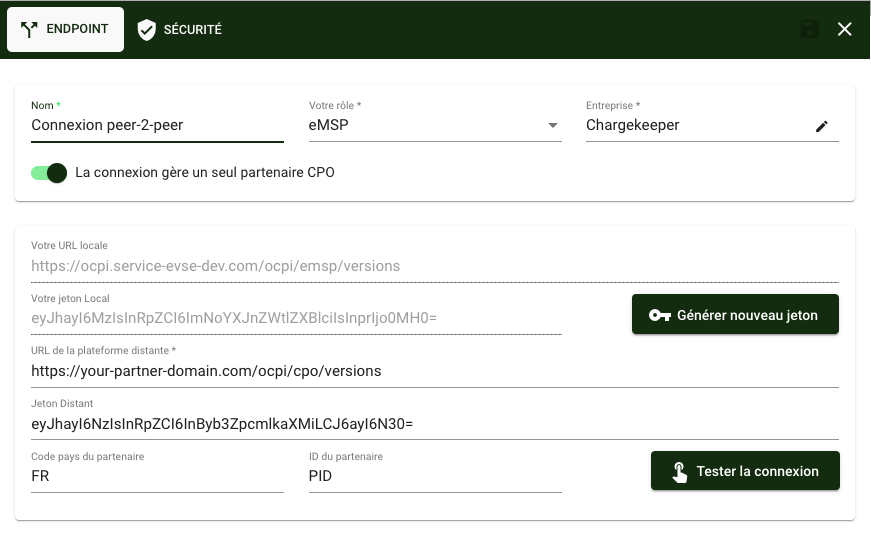
Configuration steps
-
Connection name:
- Enter a name that will make it easy to identify this connection, for example "Peer-2-peer connection".
-
Your role:
- Select EMSP (E-Mobility Service Provider).
-
Company:
- Select your company (for example, Chargekeeper).
-
Partner management:
- Enable the The connection manages a single CPO partner option if you want to establish a connection with a single CPO (charge point operator).
-
Local URL and local token:
- The local URL is generated automatically by Chargekeeper. It follows the format:
https://ocpi.service-evse-dev.com/ocpi/emsp/versions. - The local token is also generated automatically. You can regenerate a new token by clicking Generate new token.
- The local URL is generated automatically by Chargekeeper. It follows the format:
-
Remote URL of the CPO platform:
- Enter the remote platform URL provided by the CPO (for example,
https://your-partner-domain.com/ocpi/cpo/versions).
- Enter the remote platform URL provided by the CPO (for example,
-
Remote token:
- Enter the remote token provided by the CPO.
-
Partner information:
- Country code: The country code of your partner (for example, FR for France).
- Partner ID: The ID of the remote partner (for example, PID).
-
Testing the connection:
- Once the information is filled in, click Test connection to verify that the connection with the CPO works correctly.
2. Peer-to-peer connection as a CPO
This section describes how to configure a peer-to-peer connection if you are a CPO wishing to connect to an EMSP.
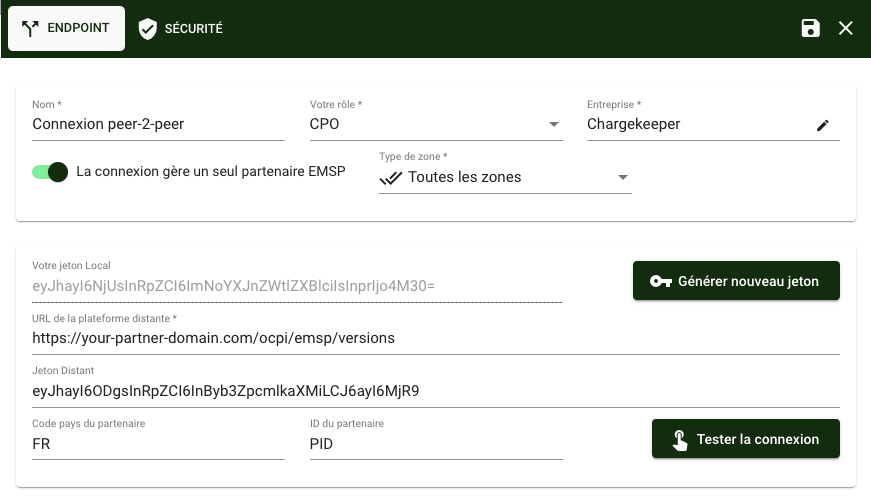
Configuration steps
-
Connection name:
- Enter a name for the connection, for example "Peer-2-peer connection".
-
Your role:
- Select CPO (Charge Point Operator).
-
Company:
- Select your company (for example, Chargekeeper).
-
Zone type:
- Select the All zones option if you want all your charge points to be accessible to your EMSP partner through this connection.
-
Partner management:
- Enable the The connection manages a single EMSP partner option if you want to limit this connection to a single EMSP.
-
Local URL and local token:
- The local URL is generated automatically and follows the format:
https://ocpi.service-evse-dev.com/ocpi/cpo/versions. - The local token is also generated automatically. You can click Generate new token to obtain a new token.
- The local URL is generated automatically and follows the format:
-
Remote URL of the EMSP platform:
- Enter the remote platform URL provided by your EMSP partner (for example,
https://your-partner-domain.com/ocpi/emsp/versions).
- Enter the remote platform URL provided by your EMSP partner (for example,
-
Remote token:
- Enter the remote token provided by the EMSP.
-
Partner information:
- Country code: The country code of your partner (for example, FR for France).
- Partner ID: The ID of the remote partner (for example, PID).
-
Testing the connection:
- Click Test connection to make sure that the connection with the EMSP works correctly.
Conclusion
Setting up a peer-to-peer connection between a CPO and an EMSP in Chargekeeper via the OCPI protocol allows for simplified and efficient roaming management. Make sure to fill in all the required fields and to test the connection before activating it.
In the event of a problem or additional questions, please do not hesitate to contact our support team.
