
Connect a charging station
Connecting a charging station to Chargekeeper enables its supervision, the control of charging sessions, and the enforcement of access and pricing rules.
This operation relies on the OCPP protocol, via a WebSocket connection between the charging station and the platform.
Prerequisites
Before you begin, make sure the charging station meets the following conditions:
- Active network connection
- SIM card (mobile network) or
- wired connection (Ethernet)
- Ability to configure a WebSocket URL
(via the firmware, a manufacturer app, software, or a web portal) - OCPP compatibility
- OCPP 1.6 JSON (recommended)
- OCPP 1.5 XML (compatible)
Connecting a charging station relies on a connection token. This token is used to generate an OCPP WebSocket URL to be entered into the charging station.
On its first connection (Boot Notification), the charging station is automatically registered in Chargekeeper.
Connecting a charging station
Access the charging station connection page
- Open the Charging stations module
- Click the Connect a charging station tab (Chargekeeper then displays the list of available connection tokens)
Understand the available URL types
Chargekeeper offers three types of URL, to be used depending on the context.
| URL type | Description |
| Cloud |
Used for charging stations that do not allow manual entry of a URL. The charging station selects Chargekeeper from a list of CPMS. The Charge Box ID must be defined in Chargekeeper. 👉 Rare case, heavily dependent on the manufacturer. |
| Organization (recommended) |
A single URL for all the organization's charging stations. Charging stations are automatically attached to the organization. Option to set a default site on first connection. 👉 Recommended method for new installations. |
| Backward-compatible |
Legacy Chargekeeper format with a specific URL per site. The charging station is automatically attached to the defined zone. ⚠️ More complex and more prone to entry errors. |
Create a connection token
- Open the Charging stations module
- Click the Connect a charging station tab (Chargekeeper then displays the list of available connection tokens)
- Click Create
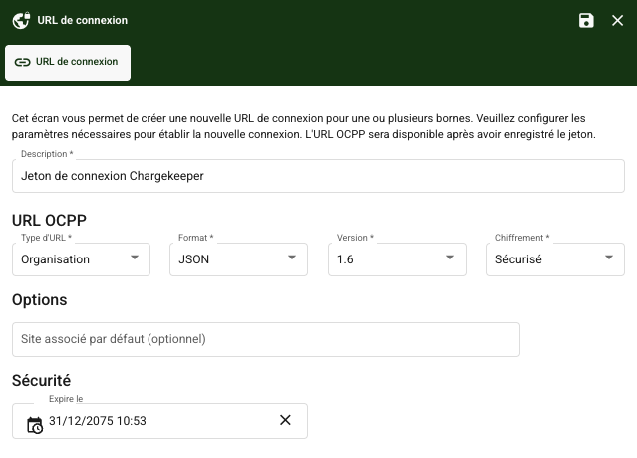
- Fill in:
- Description (to identify the token's purpose)
- URL type: Cloud / Organization / Backward-compatible
- Format: JSON (recommended) or XML
- OCPP version: 1.6 recommended
- TLS encryption:
- enabled: secure connection (recommended)
- disabled: only for older charging stations
Additional options
Default associated site
(automatic attachment on the first Boot)
Expiration date
(URL becomes invalid if the charging station has never connected)
Copy and enter the URL in the charging station
- Save the token
- Copy the generated WebSocket URL
- Enter it in the charging station's OCPP configuration
- Restart the charging station if necessary
On the first connection, the charging station automatically appears in the supervision view.
Best practices
- Prefer secure OCPP 1.6 JSON
- Use one token per context (installation, test, production)
- Set an expiration date for temporary tokens
- Verify the first connection via the OCPP logs
Manufacturer-specific requirements
Some brands require a specific way of entering the URL:
| Manufacturer | Specifics |
| KEBA |
|
| Autel |
URL: Add a The port must be included explicitly |
👉 For more details on connecting a charging station by brand, you can consult the dedicated articles:
- Connect a charging station: Easee
- Connect a charging station: Elinta
- Connect a charging station: Keba
- Connect a charging station: Zaptec
- Connect/migrate a charging station: EvBox
