
Users
In Chargekeeper, a user represents a person who can access the supervision platform, the mobile application and/or charging.
Creating a user
A user represents a person who can access the supervision platform, the mobile application and/or charging.
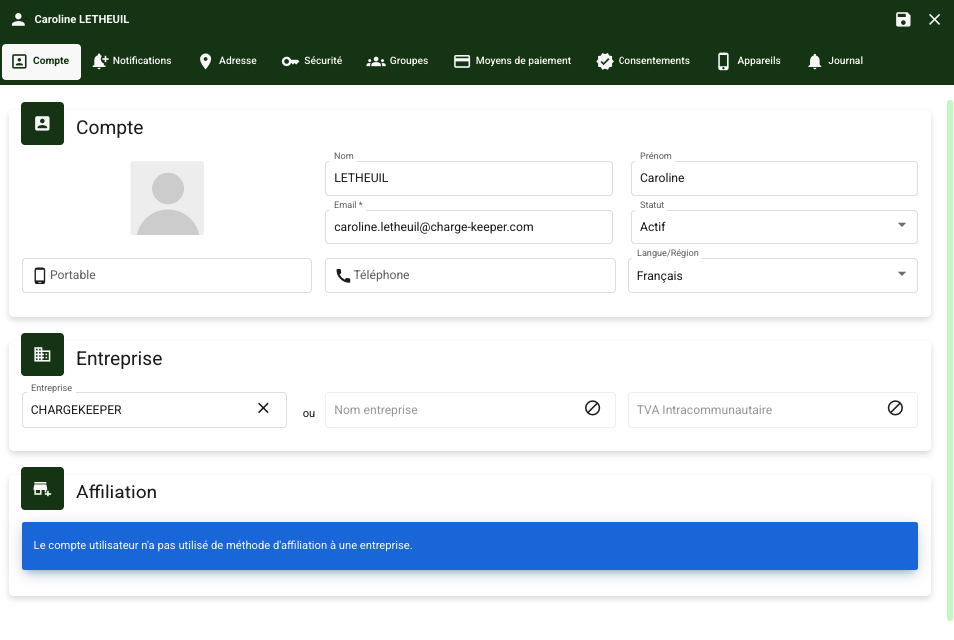
Account
- Go to the Users module
- Click Create
- Fill in the required information:
- Email address
- Language
- Status (Pending / Active)
- (Optional) Fill in:
- First and last name
- Company
- Phone
- Address
- Save
- In the Groups tab, associate the user with the group created previously
Without an associated group, the user will not be able to charge.
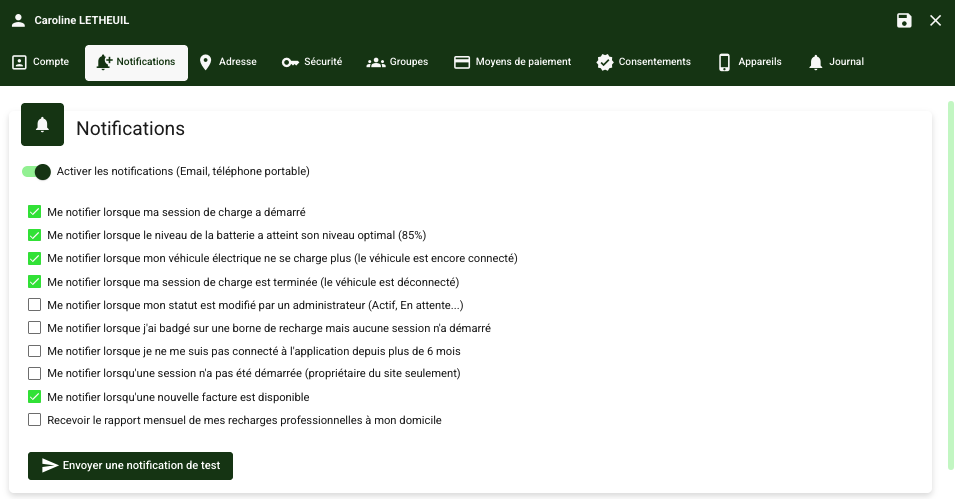
Notifications
When a user account is created, certain standard notifications are enabled by default. They can, however, be adjusted according to your needs. The user can also manage their notification preferences directly from the application.
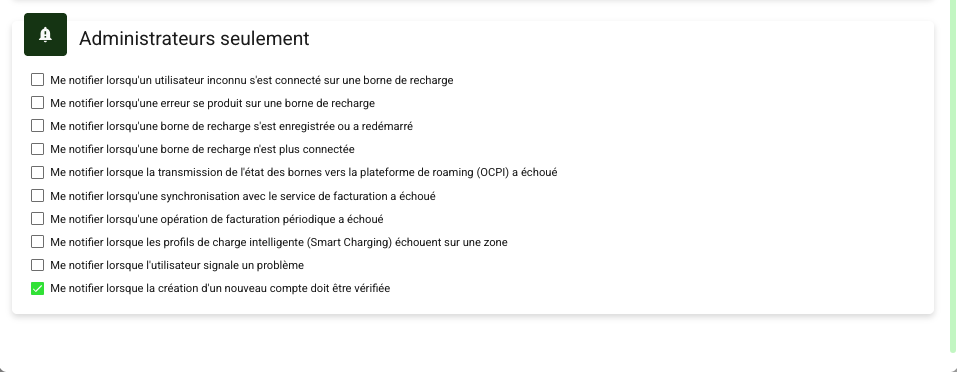
In addition, for accounts with an Admin role, specific notifications can be enabled. These notifications can only be enabled from the supervision platform.
Log
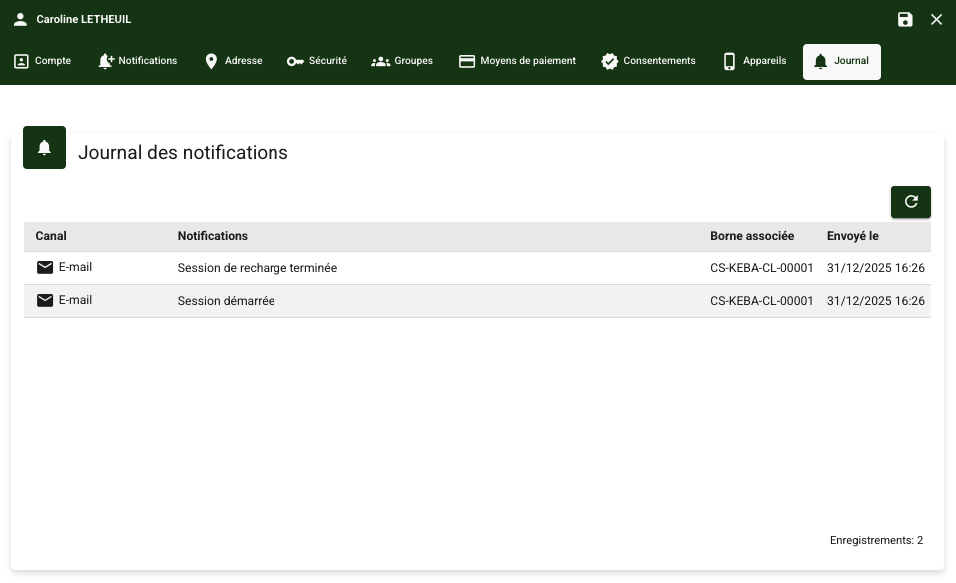
This tab lets you review all notifications sent to the user, with the following details:
- the delivery channel (email, SMS, etc.),
- the reason for the notification (session start, alert, etc.),
- the associated charging station,
- the date and time it was sent.
A user's first login
To log in to the supervision platform, the user must:
- Click on forgot password
- Enter the email address associated with their user account
- Set a password using the link received by email
Once the password is set, the user can log in to the supervision platform.
Deleting a user
Deleting a user in Chargekeeper is subject to certain strict rules in order to ensure data security and to comply with legal obligations, particularly regarding the management of invoices and charging sessions.
Rules for deleting a user
Unpaid invoices:
- Chargekeeper does not allow a user account to be deleted if that user has unpaid invoices. You must settle all outstanding invoices before you can proceed with deleting the account.
Data deletion:
When a user is deleted, the following information is permanently removed:
- Their account and all of their personal information (last name, first name, email, etc.).
- Their profile picture.
- Their associated vehicles, if any.
Badge management:
- The user's virtual badge (used for charging sessions via the mobile application) is deleted.
- The physical badges (such as RFID cards) are not deleted, but are deactivated and anonymized. This means the badge can no longer be used, and all associated personal data is removed.
Charging sessions and invoices:
- The user's charging sessions are anonymized. This means that all personal information associated with these sessions is removed, but the technical data (such as duration and consumption) is retained for analysis purposes.
- Existing invoices linked to charging performed by the user are retained in accordance with the legal obligations to keep financial data. Personal information is removed, but the invoice details remain accessible for administrative and accounting purposes.
How to delete a user
To delete a user, you must make sure they have no unpaid invoices. Then, you can go to the User management section in Chargekeeper, select the relevant user, and proceed with the deletion. If any invoices remain unpaid, you will be prompted to settle them before you can continue.
