
Connect a Keba charging station
This page guides you step by step through connecting a KEBA charging station to the Chargekeeper supervision platform. By following these instructions, you will be able to correctly configure the charging station so that it communicates with our supervision system using the OCPP protocol.
Configuration parameters
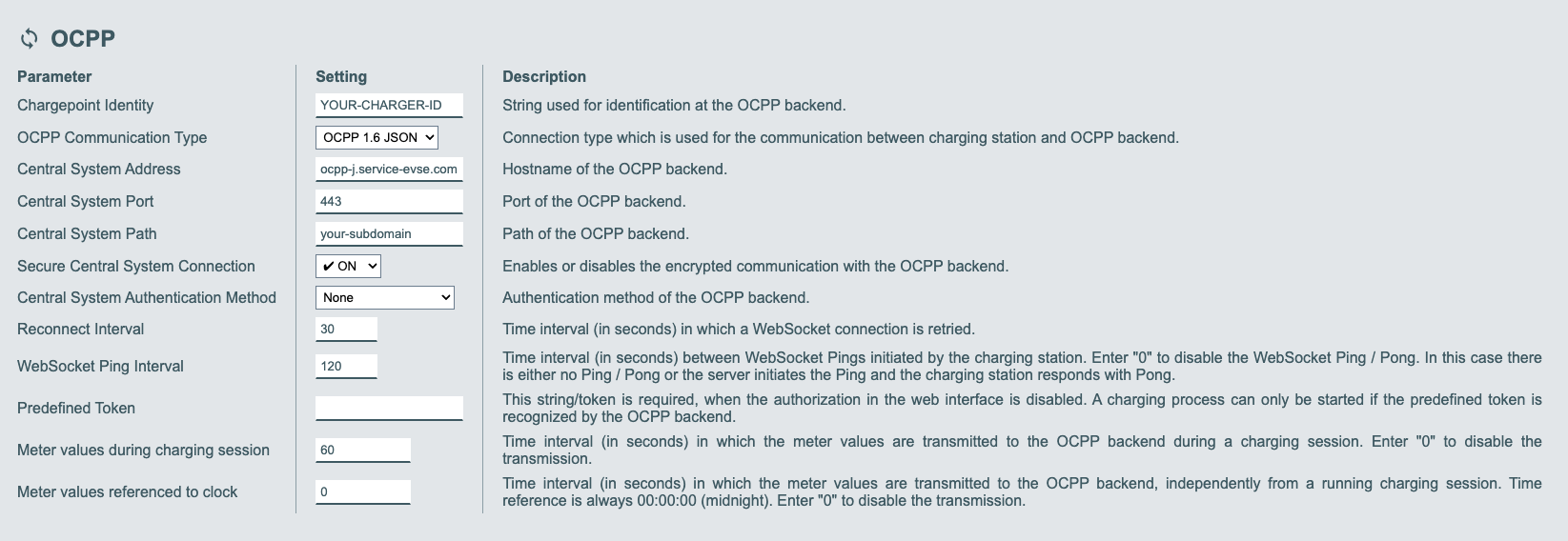
Here is an example of a typical KEBA charging station configuration for Chargekeeper:
- Chargepoint Identity: This is the unique identifier of the charging station. Use the identifier provided by Chargekeeper or define a custom identifier that will allow you to easily recognize the charging station.
- OCPP Communication Type: Select OCPP 1.6 JSON. This protocol is recommended for maximum compatibility with Chargekeeper.
- Central System Address: Enter
ocpp-j.service-evse.com, which is the address of our central supervision system. - Central System Port: Use port 443 to ensure a secure connection via TLS (HTTPS).
- Central System Path: This field corresponds to the subdomain name of your supervision instance when you use an "organisation" type token. If you use a "cloud" type token, you can leave this field empty.
- Secure Central System Connection: Enable this option (ON) to secure the communication between the charging station and Chargekeeper via TLS.
- Central System Authentication Method: Select None. Chargekeeper does not require any specific authentication through this parameter to establish the connection.
Detailed configuration steps
-
Access the KEBA charging station configuration interface:
- Log in to the interface via a web browser to access the KEBA firmware.
-
Fill in the parameters:
- In the OCPP section of the charging station's interface, enter the parameters above.
-
Check the connection:
- Once the parameters are configured, verify that the charging station communicates correctly with Chargekeeper by observing the connection status in the supervision interface. If the configuration is correct, the charging station should appear as connected.
Important notes
-
Check the charging station's firmware: Make sure the charging station's firmware is up to date to ensure compatibility with OCPP 1.6 JSON.
-
Connection issues: If the charging station fails to connect, check that the network configuration (Wi-Fi, Ethernet, etc.) is correct and that the required ports (80 and 443) are not blocked by a firewall.
In case of a problem or for any additional questions, do not hesitate to contact our support team or consult our connection troubleshooting page.
Manufacturer's website https://www.keba.com
