
Guide to using Stripe for payment management in Chargekeeper
Welcome to the documentation dedicated to using the Stripe payment solution to manage your transactions in Chargekeeper. We chose Stripe to ensure the security and reliability of your payments.
Why Stripe?
Stripe is one of the most reliable and recognized payment solutions in the world. It is used by millions of businesses, from startups to large enterprises, to securely manage online financial transactions. Here is why we chose Stripe:
- World-class security: Stripe protects your data through advanced encryption technologies, ensuring that all transactions are secure.
- Regulatory compliance: Stripe complies with PCI DSS (Payment Card Industry Data Security Standard) security standards, making it a trusted solution for managing payments.
- Reliability and speed: Payments are processed smoothly and quickly, giving you a seamless experience.
By using Stripe, you benefit from a proven solution that secures your payments while simplifying financial operations.
Configuring Stripe in Chargekeeper
Create a Stripe account: *
- If you do not yet have a Stripe account, sign up at https://dashboard.stripe.com.
- Follow the steps to enter your company information, including the details for collecting charging session amounts.
Add Chargekeeper as a developer:
- Once your Stripe account is created and initialized, go to Settings in your Stripe dashboard.
- Go to Team and security and click New member.
- Invite Chargekeeper as a developer using the email address:
connection@charge-keeper.com - Be sure to assign the following roles: IAM Admin, Administrator, Developer.
The next steps are handled by Chargekeeper to ensure a compliant integration.
Please notify Chargekeeper at: support@charge-keeper.com.
- Configuring the Stripe API keys:
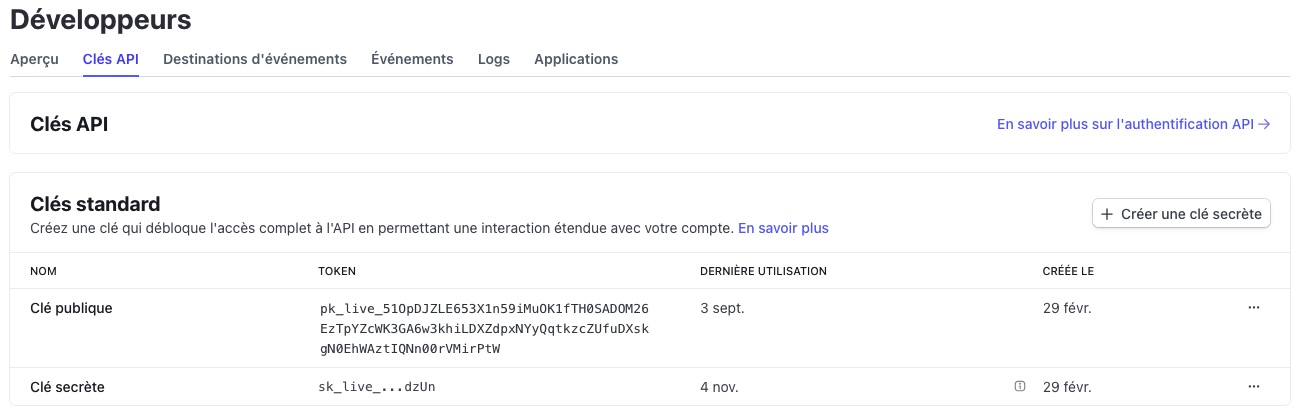
- Go to the Developers tab on the Stripe dashboard, then select API keys.
- Publishable key: Copy your Stripe publishable key.
- Secret key: Create a secret key
Click Create a secret key
Then Create your own integration
Enter Chargekeeper as the key name, then copy the key.
- Configure the Webhook:
To allow Stripe to communicate correctly with your Chargekeeper supervision, you need to configure the Webhooks. Here are the detailed steps to perform this configuration.
Access the Webhooks section in Stripe
- Log in to your Stripe dashboard.
- In the Developer menu, click the Webhooks tab.
- Click the Add destination button.
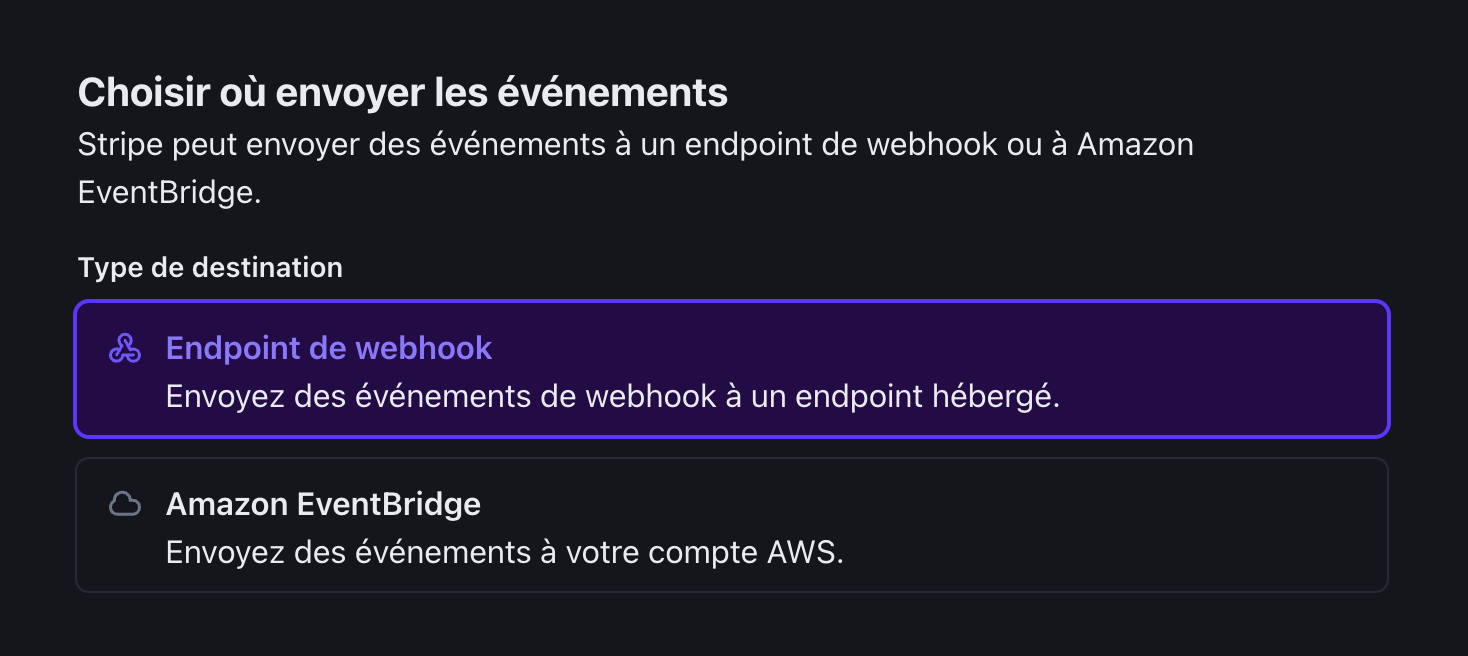
Add an Endpoint
- In the Endpoint addition window, enter the following URL, replacing
[votre-nom-de-domaine]with the domain of your Chargekeeper supervision. Example:https://rest.service-evse.com/v1/webhook/listen/billing/[votre-nom-de-domaine].
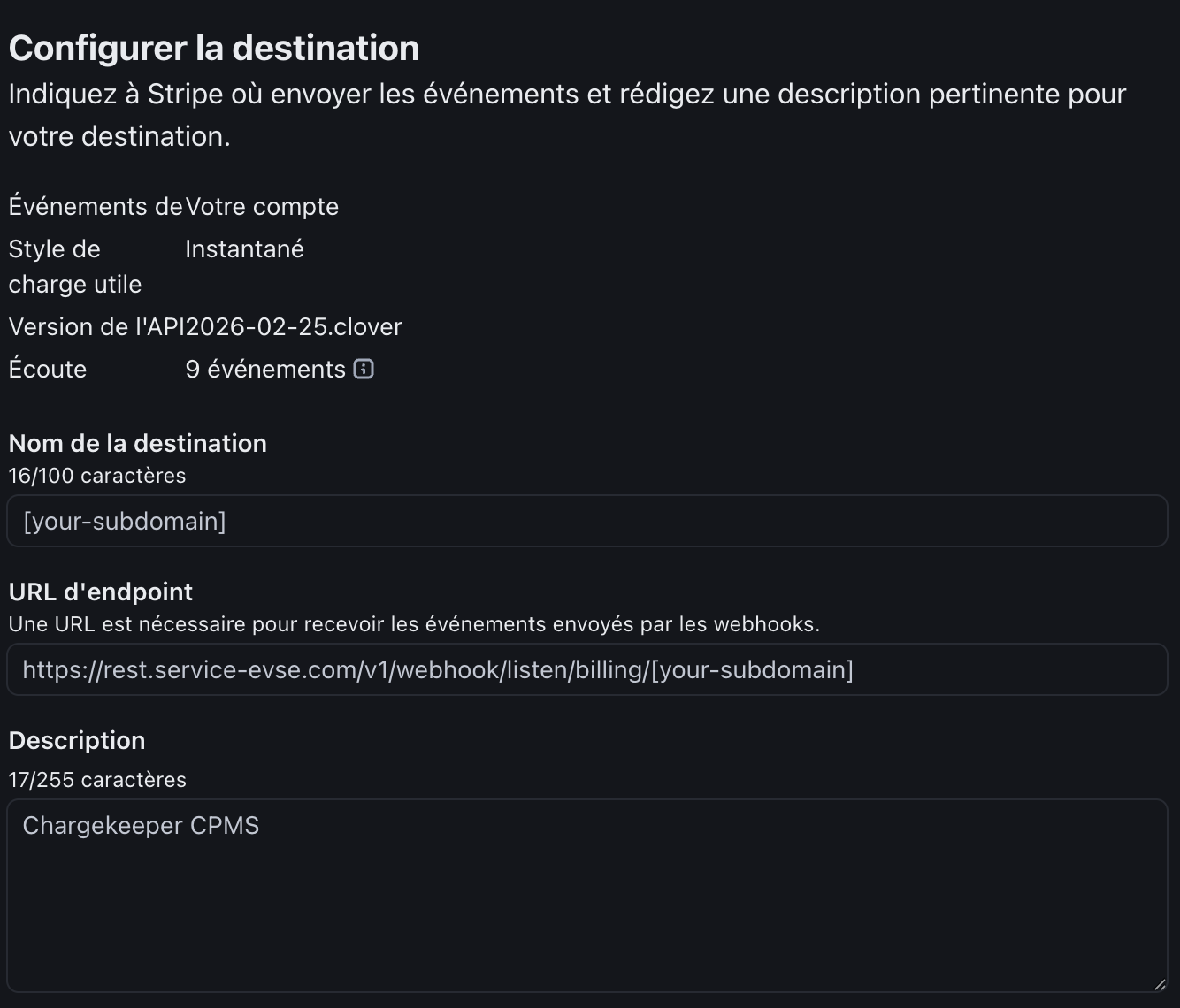
Select the events to send
- Select the Stripe events you want to forward to Chargekeeper. Here is the list of required events:
charge.refundedpayment_intent.canceledpayment_intent.payment_failedpayment_intent.requires_actionpayment_intent.succeededpayment_method.attachedpayment_method.automatically_updatedpayment_method.detachedpayment_method.updated
Finalize adding the Webhook
- Once the required events are selected, click Add an Endpoint to validate the configuration.
Retrieve the Webhook secret key
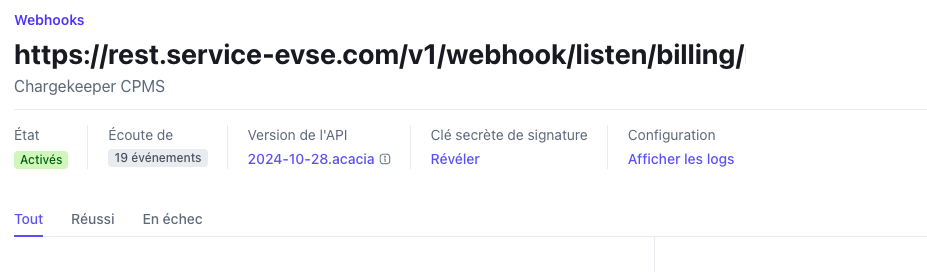
- After adding the new Endpoint, click the Reveal button to display the Webhook secret key.
- Copy this key and enter it into your Chargekeeper supervision.
- Enter the information in Chargekeeper:
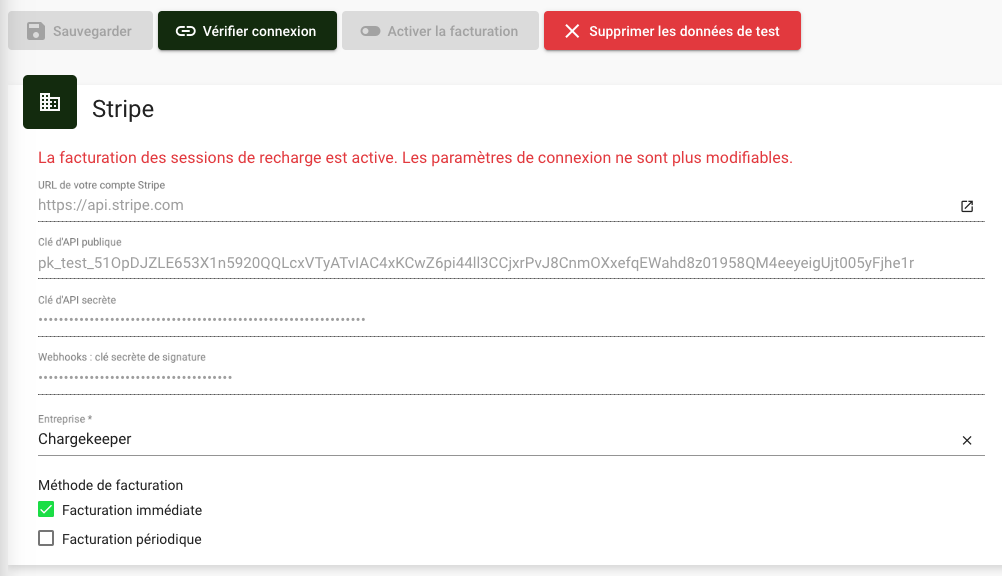
- Go to the Stripe configuration page in Chargekeeper.
- Enter the various keys:
- Paste the publishable key into the publishable API key field *(the key is prefixed with
pk_live_). - Paste the secret key into the secret API key field *(the key is prefixed with
sk_live_). - Paste the webhook secret key into the webhook - signing secret key field (the key is prefixed with
whsec_).
- Paste the publishable key into the publishable API key field *(the key is prefixed with
- Enter the name of the company that owns the Stripe account, the one that will collect the payments.
- Click Verify connection to make sure the integration is correct.
- Once the connection is verified, you can enable billing for charging sessions.
How to access your invoices issued by Stripe?
All transactions made through Chargekeeper are recorded and managed by Stripe. You can easily view and download the invoices that Stripe issues for these transactions.
Access invoices via the Stripe dashboard
To find your invoices, follow these steps:
- Log in to your Stripe account by going to the dashboard: https://dashboard.stripe.com.
- Navigate to the Settings tab in the menu.
- Click Compliance and documents to view the billing documents.
You can also use the direct link to access the documents:
https://dashboard.stripe.com/settings/documents.
What do your Stripe invoices include?
The invoices issued by Stripe detail all the fees associated with the collected financial flows, in particular:
- Stripe processing fees: Proportional fees are applied to each card payment. This includes a percentage of the total transaction amount as well as a fixed amount per transaction.
- Fees for collected taxes: Where applicable, Stripe may apply fees on collected taxes.
- Billing fees: Proportional fees are applied to each invoice issued and settled.
Importance of your Stripe account email address
When you set up your Stripe account, the associated email address is particularly important:
- Automatic billing: Stripe automatically sends invoices and compliance documents to the email address you have configured. Make sure this address is valid and monitored regularly.
- Important notifications: In addition to invoices, you will also receive important notifications regarding payments, refunds, and dispute management.
Below is an example of an automatic email sent by Stripe for your accounting records:

Apple Pay certificate renewal
Go to the iOS certificate settings in the Dashboard, click Add a new application and follow the instructions provided.
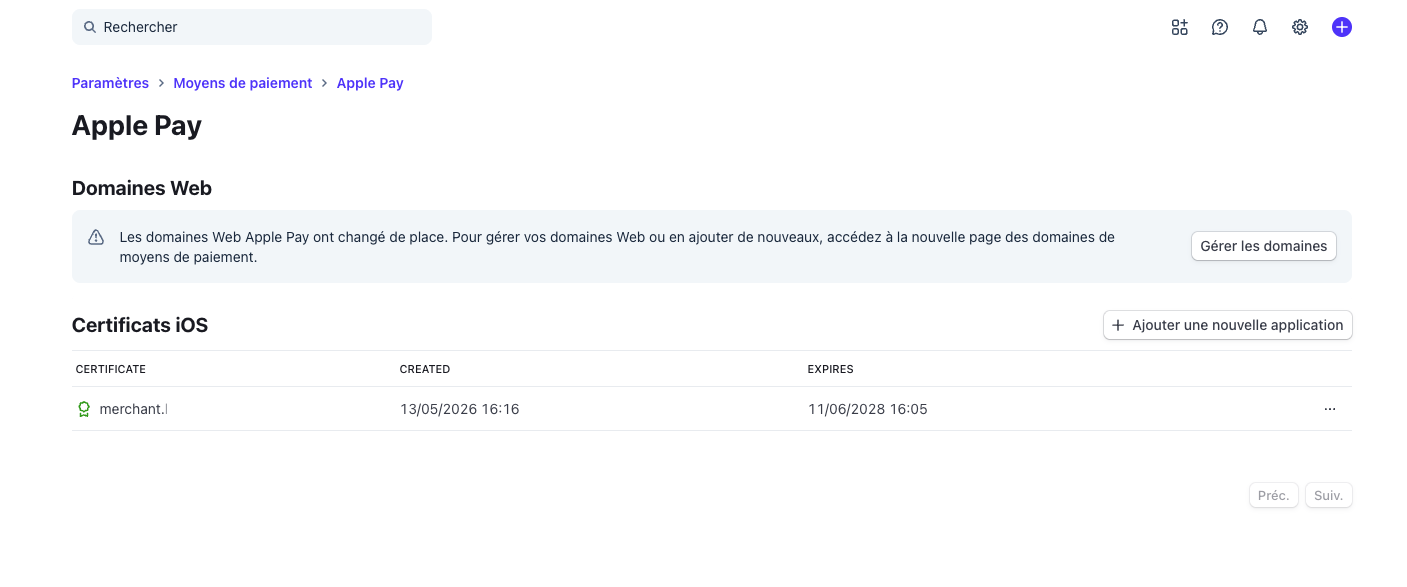
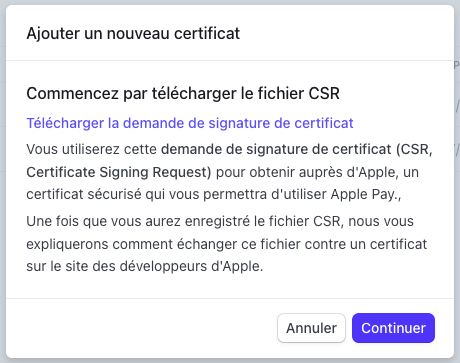
Download the certificate signing request, the stripe.certSigningRequest file.
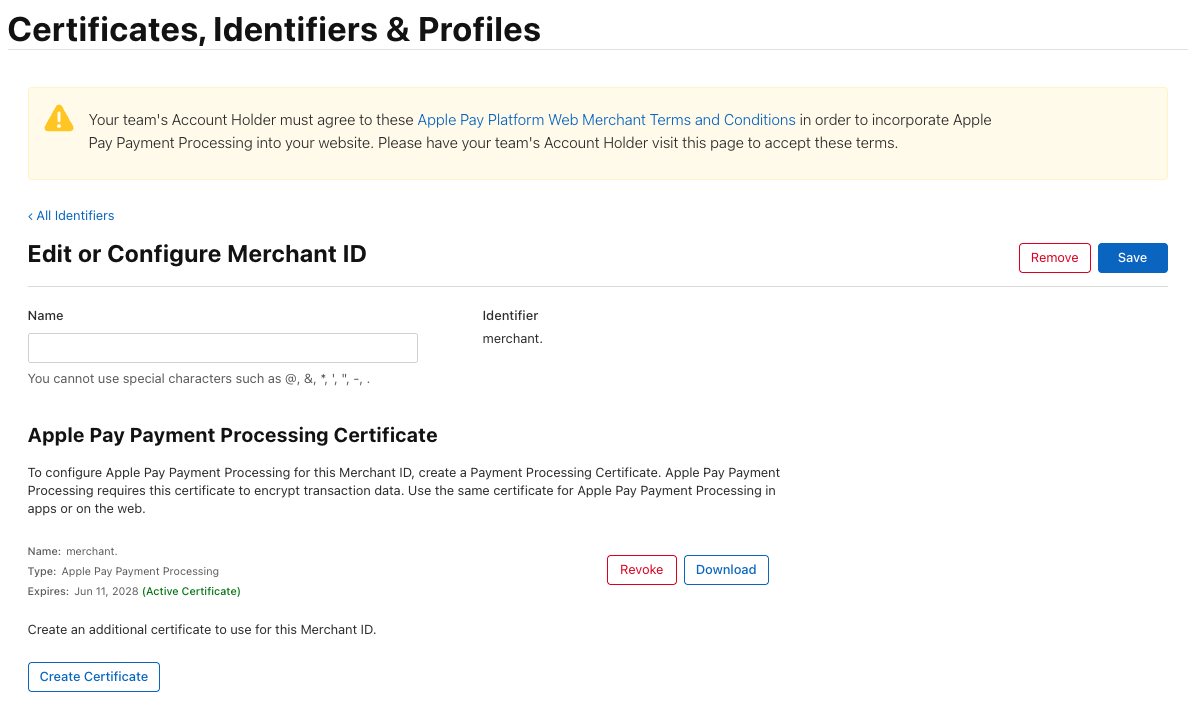
Go to Apple Developer, in the list of Merchant IDs: https://developer.apple.com/account/resources/identifiers/list/merchant
Then click on the relevant Merchant ID. On this screen, click the Create Certifcate button, and upload the file generated by Stripe stripe.certSigningRequest.
The Apple Developer console will generate and offer to download the apple_pay.cer file
Go back to Stripe, then upload the apple_pay.cer file in the new certificate addition window. Click Submit.
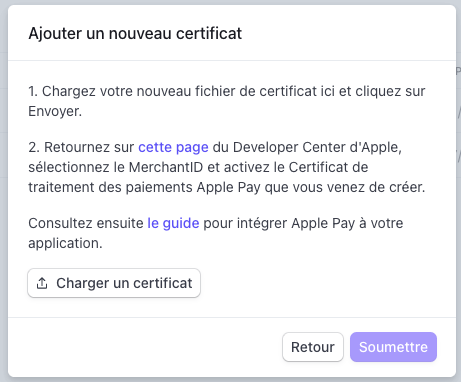
Finally, return to the Apple Developer Console to activate the newly created certificate.
PCI DSS certification
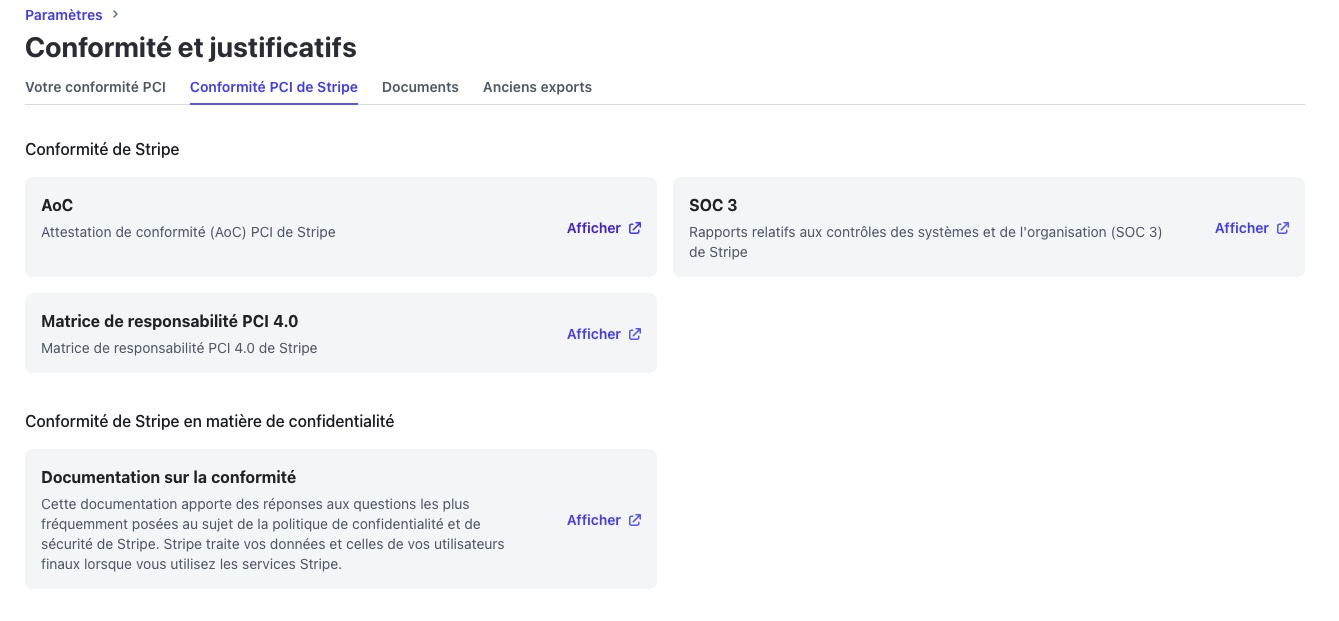
To ensure the security of your transactions, Stripe and Chargekeeper comply with PCI DSS (Payment Card Industry Data Security Standard) standards. You can download these certification documents for your own compliance or verification needs.
Stripe PCI DSS certification
Option 1: Download directly
- Click here to download Stripe's PCI DSS certification document:
Download Stripe's PCI DSS certification.
Option 2: Access via the Stripe dashboard
- Log in to your Stripe account.
- Go to the Settings tab.
- Click Compliance and documents to find and download Stripe's PCI DSS certification document.
- You can also access the compliance documents section directly here:
https://dashboard.stripe.com/settings/documents.
Chargekeeper PCI DSS compliance document
- Chargekeeper's compliance document is a SAQ (Self-Assessment Questionnaire). Download it here:
Download Chargekeeper's PCI DSS SAQ.
Note: If the Chargekeeper link is not available, please go to our support center or contact our support team to obtain the document.
These documents are essential to ensure that your payment operations are secure and compliant with industry standards.
We hope this guide has been helpful. If you have any questions or concerns about your Stripe payments or invoices, please feel free to reach out to our support team or explore the full documentation on the Stripe website.
Thank you for using Chargekeeper with Stripe for reliable and secure payment management.
