
Invoice management
Managing accounting documents lets you track, correct and reconcile the invoices and credit notes issued from the supervision platform, both in B2C and B2B.
From the Invoices module, several actions are available depending on the status of the accounting document.
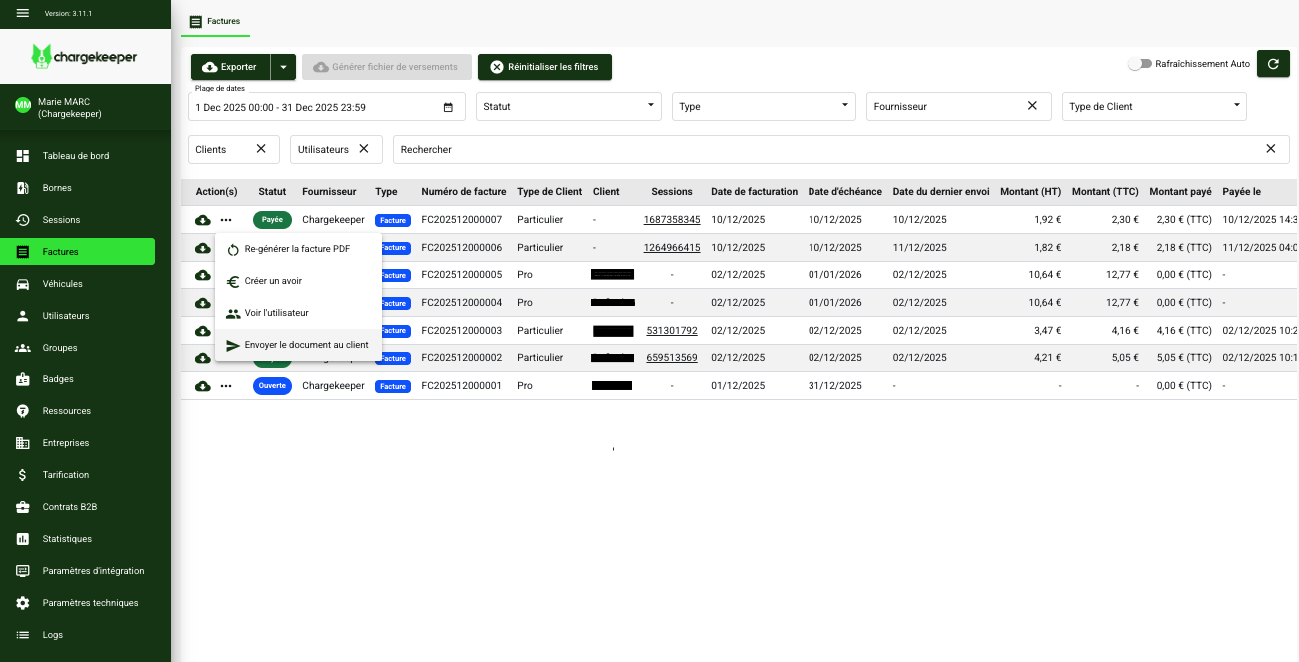
Actions available on an invoice or a credit note
Re-generate the PDF
This action lets you re-generate the PDF document of an accounting document (invoice or credit note).
Useful when the invoice content has been modified, in order to:
- update the amounts,
- ensure the consistency of the displayed data,
- have an up-to-date accounting document.
Send the document to the customer
Lets you resend the accounting document by email to the recipient.
The subject and content of the email are adapted automatically:
- open invoice → dunning / unpaid email,
- settled invoice → informational email with the invoice attached.
Retry the payment
The payment can be retried manually or automatically.
A recurring task retries the payment every 5 days. The process is identical to the manual Retry the payment action
The Retry the payment action allows:
- In case of a decline (insufficient funds, card rejected, etc.):
- up to 6 attempts are made via Stripe to collect payment:
- Payment succeeded: An informational email is sent confirming the invoice is paid
- Payment failed: An email is sent to the customer to enter a new bank card or to complete authentication if 3DS is pending.
- up to 6 attempts are made via Stripe to collect payment:
Beyond the 6th attempt, no new payment collection is triggered.
Create a credit note
You can create a credit note from a B2C invoice with the Paid status.
👉 For more details, see the dedicated article on creating a credit note.
Managing invoices – Specific use cases
The invoice is open (unpaid)
An invoice with the Open status means it has not been settled.
The supervision platform specifies the Stripe decline reason (e.g. 3DS required, insufficient funds, card declined, etc.).
An automatic task retries the payment collection, but if needed you can use the Retry the payment action, which performs the same operation.
The invoice is not recoverable
If the invoice cannot be settled despite the reminders:
- change its status to Non-recoverable,
- no automatic reminder will be sent afterwards.
The invoice must be cancelled
If you do not wish to charge the customer and the transaction has been cancelled on the Stripe side:
- change the invoice status to Cancelled,
- unblock the user account (blocked following the unpaid invoice).
The user will be able to top up again.
