
Scan&Pay
Chargekeeper's "Scan & Pay" system offers a simple and convenient way for users to pay for their charging sessions by scanning a QR code displayed on the charging station. This service is ideal for occasional users or those who prefer not to use an RFID badge or a physical bank card. Here is how it works, the required settings, and its benefits.
Prerequisites for using the "Scan & Pay" system
1. Activating the "Scan & Pay" module
For this feature to be available to your users, the "Scan & Pay" module must be enabled in your Chargekeeper supervision. Contact our support team to assist you with the activation if needed.
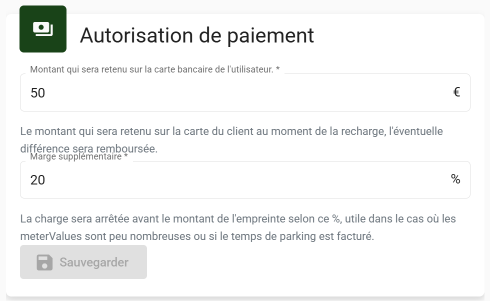
2. Setting a pre-authorization amount
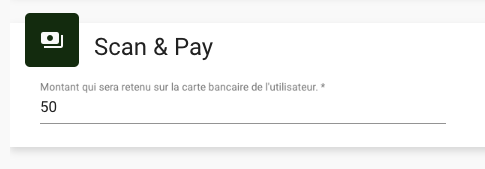
The "Scan & Pay" system requires you to set a pre-authorization amount from your supervision. This amount is used to place a hold on the account associated with the user's bank card.
- If the hold fails, the charging session cannot be started.
- If the session reaches the pre-authorized hold amount, the supervision automatically stops the charge to prevent uncovered overruns.
To configure the pre-authorization amount, go to Integration settings -> Pricing:
How the "Scan & Pay" system works
1. Identifying the QR code
A unique QR code is generated by Chargekeeper for each charging station. This QR code is affixed to the station, usually near the connector or in an easily accessible spot.
The QR codes are available for download from the list of charging stations in your supervision. Chargekeeper automatically generates one QR code per connector.
2. Scanning the QR code
The user can use:
- The camera of their smartphone (most smartphones automatically recognize QR codes).
- A white-label application, if one is offered by your company.
3. Redirection to the payment page
After scanning the QR code:
- The user is automatically redirected to a dedicated web page or an interface embedded in the application.
- This page can be the standard Chargekeeper version or a customized version with your branding.
4. Entering payment information
On the payment page, the user can:
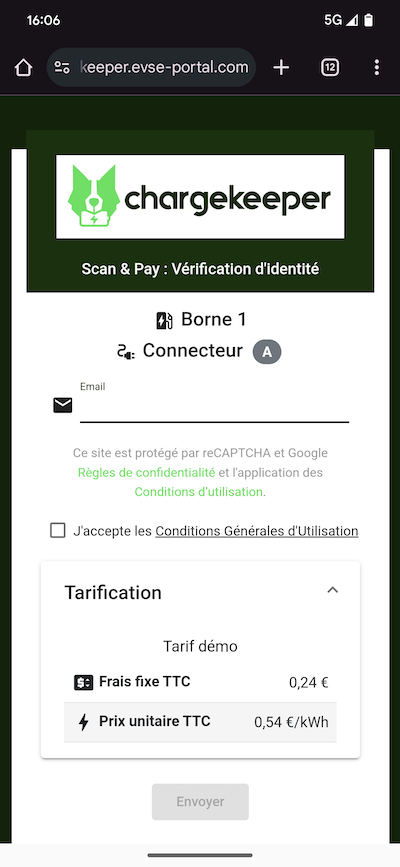
- View the tariff of the scanned station.
- Enter their email address to receive a link that lets them return to the Scan & Pay page at any time if they accidentally close their browser.
- Review and accept the terms and conditions of use.
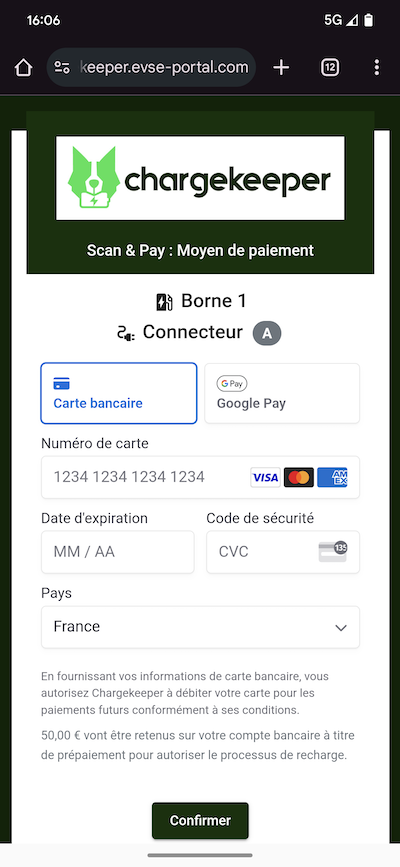
- Enter their bank details to make the payment (VISA, MasterCard, AMEX, Google Pay and Apple Pay).
- Use a saved payment method if they are already registered on your platform.
5. Validation and start of the charging session
Once the payment is validated:
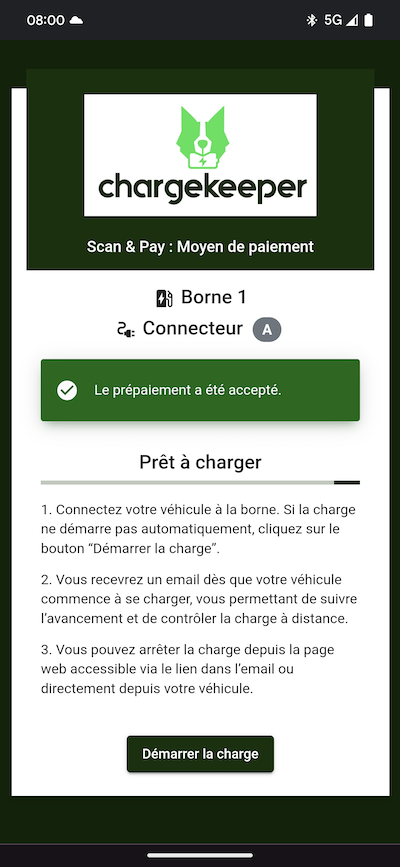
- The station automatically starts charging the vehicle.
- For some stations, it may be necessary to start the charge manually after plugging in the vehicle. This action can be performed by the user through the Scan & Pay interface.
- The user can view in real time:
- The status of the charging session.
- The amount accumulated during the session.
Specific behaviors and recommendations
Anonymization of charging sessions
The "Scan & Pay" system anonymizes charging sessions. In your Chargekeeper supervision:
- Charging sessions are marked as "scan-and-pay".
- The associated invoices are also anonymized.
Automatic stop of charging sessions
- If a session reaches the pre-authorized hold amount, it will be automatically stopped by the supervision.
- Set an additional stop threshold: For a €50 hold with a stop threshold of 20%, the session will be stopped when it reaches €40. This configuration is useful if there are few meterValues or if a parking time is billed.
- Possible remainder: In some cases, when the session is automatically stopped for safety reasons, a "Remainder" of a few euro cents may appear.
- This is because some stations do not send consumption readings (Meter Values) on a regular basis.
- Recommendation: Make sure to configure the frequency of Meter Values messages (see our dedicated page on OCPP Configuration).
Capturing the hold amount
- If the session amount exceeds the hold amount, the hold is then captured.
Example: For a €32 session with a €30 hold, the hold is captured, and the invoice appears as "Partially paid" in the supervision.
Benefits of the "Scan & Pay" system
The "Scan & Pay" system offers several advantages:
- Ease of use: No RFID badge or physical bank card required.
- Accessibility for occasional users: Ideal for people who do not wish to sign up for a subscription.
- Flexibility: Compatible with smartphones through a simple QR code scan.
- Customization: Can be integrated as a white-label solution to reflect your company's visual identity.
- Real-time tracking: Users can follow their charging session in real time and see the amount accumulated.
- Payment security: Chargekeeper uses secure payment solutions to guarantee a reliable transaction.
Support
For any questions or assistance regarding the "Scan & Pay" system, contact our support team at support@charge-keeper.com.
