
Alert management & monitoring
Supervision makes it possible to identify issues and send alerts based on the configurations you define.
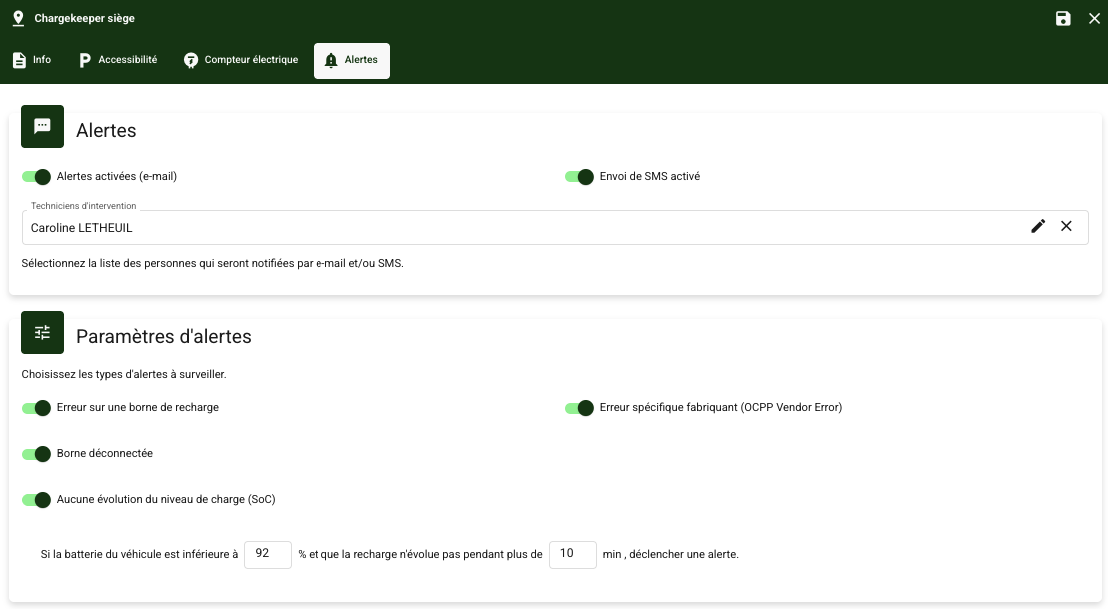
Enable alerts
- From a zone, in the 'Alerts' tab
- Enable alerts: By default, alerts are sent by email
- SMS delivery: Enable this communication channel
- Technicians: Select the on-call technicians to be alerted
Configure alerts
Define the reasons for which you want to create an alert:
- Error on a charging station
- Manufacturer-specific error (OCPP Vendor Error)
- Charging station disconnected: Triggered after 10 min of station disconnection
- No change in charge level: Define the battery % and the minimum duration
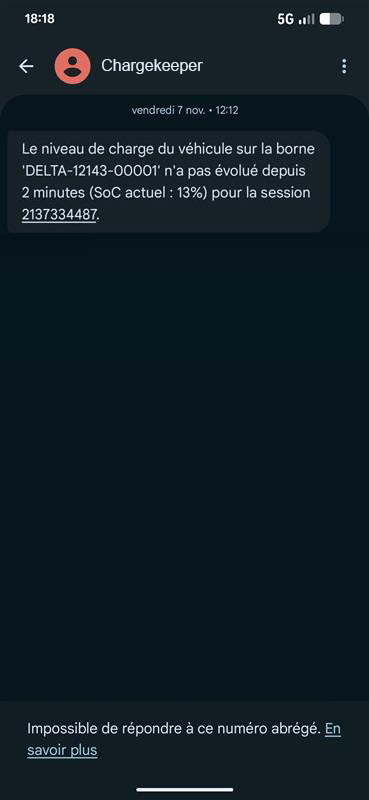
Example of an SMS reporting SoC progress during a session:
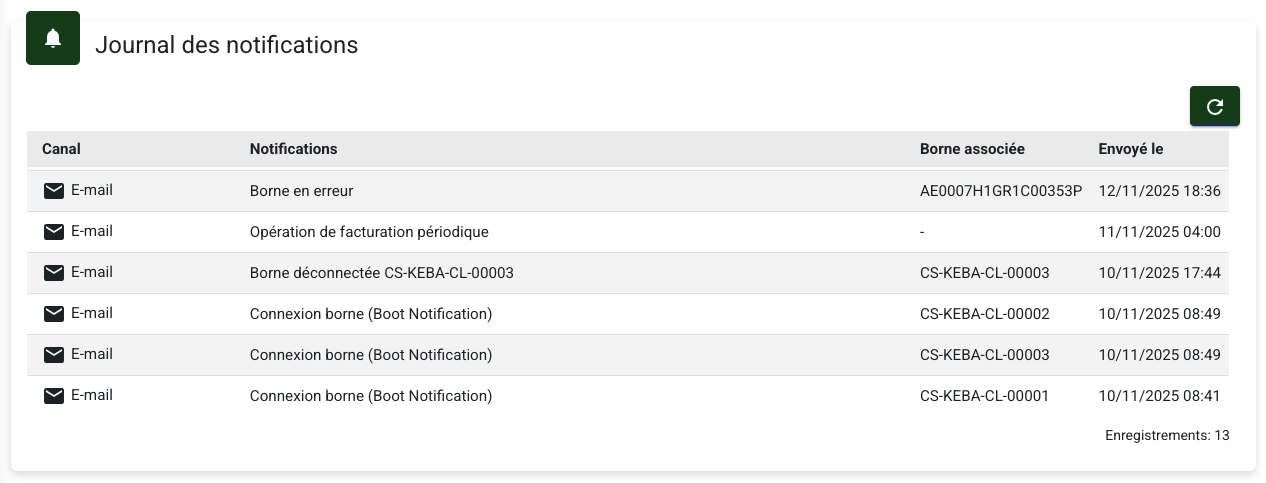
View the notifications sent
From a user, in the Log tab, you can view all the notifications sent along with the channel used, the reason and the date sent.
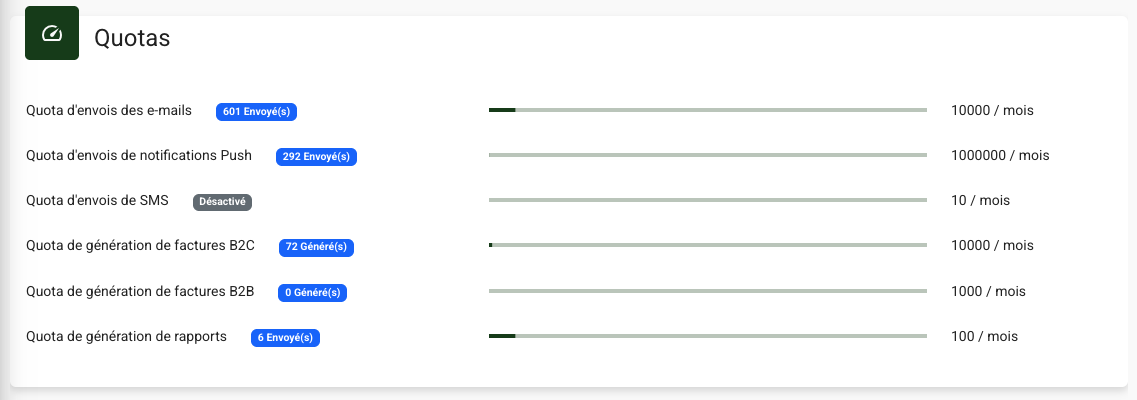
Track your quotas
From the Technical settings module, in the Organizations tab, you can track your supervision quotas:
Default alerts
Chargekeeper offers an alerting system with around thirty rules related to charging stations, sessions and users, built natively into the supervision.
You can review these alerts directly through the 'Alerts' module or from the Alerts tab of the Charging stations, Sessions and Users modules.
For each alert, you can:
- View the details,
- View the recommendation
- Acknowledge the alert by setting a duration (6h, 24h, 72h or unlimited)
👤 Users
| ID | Alert | Level | Trigger |
|---|---|---|---|
| R001 | User blocked | Info | Status ≠ Charging blocked |
| R002 | User not assigned to a group | Error | No group associated |
| R003 | Payment synchronization error | Warning | Payment platform synchronization failure |
🔌 Sessions
| ID | Alert | Level | Trigger |
|---|---|---|---|
| R004 | High consumption | Error | > configured max threshold |
| R005 | Low consumption | Warning | < configured min threshold |
| R006 | No consumption | Warning | = 0 kWh |
| R007 | Abnormal duration | Warning | < configured min duration |
| R008 | High price | Warning | > configured max amount |
| R009 | No amount | Critical | = 0 |
| R010 | Prolonged inactivity | Warning | > 4h without activity |
⚡ Charging stations
| ID | Alert | Level | Trigger |
|---|---|---|---|
| R011 | Max power missing | Error | = 0 kW |
| R012 | Model missing | Error | Model not filled in |
| R013 | Manufacturer missing | Error | Manufacturer not filled in |
| R014 | Incorrect power unit | Error | ≠ Watt/Ampere |
| R015 | Websocket URL missing | Error | Not filled in |
| R016 | Zone not defined | Error | Not attached to a zone |
| R017 | Websocket connection broken | Error | No contact > allowed delay |
| R018 | Connector type not defined | Error | Not filled in |
| R019 | Connector type inconsistent | Error | Not compliant with expected list |
| R020 | Connector under-voltage error | Error | OCPP code UnderVoltage - 0012 |
⚙️ OCPP parameters
| ID | Alert | Level | Trigger |
|---|---|---|---|
| R021 | AuthorizeRemoteTxRequests incorrect | Error | ≠ TRUE |
| R022 | MeterValueSampleInterval disabled | Error | ≤ 0 |
| R023 | MeterValueSampleInterval too short | Warning | < 60 s |
| R024 | MeterValueSampleInterval too long | Warning | > 300 s |
| R025 | Heartbeat disabled | Warning | ≤ 0 |
| R026 | Heartbeat too short | Warning | ≤ 3600 s |
| R027 | Heartbeat too long | Warning | ≥ 43200 s |
| R028 | No MeterValues data | Error | ENERGY_ACTIVE_IMPORT_REGISTER absent |
| R029 | No StopTxnAlignedData | Warning | ENERGY_ACTIVE_IMPORT_REGISTER absent |
| R030 | AllowOfflineTxForUnknownId incorrect | Warning | ≠ TRUE |
| R031 | ConnectionTimeout too short | Warning | < 60 |
| R032 | PingInterval too short | Warning | < 140 s |
| R033 | PingInterval too long | Warning | > 220 s |
| R034 | TransactionMessageAttempts too low | Warning | < 3 |
| R035 | TransactionMessageAttempts too high | Warning | > 10 |
Support
If you wish to subscribe to this option, contact our sales team at sales@charge-keeper.com.
For any assistance regarding the configuration and operation of alerts, contact our support team at support@charge-keeper.com.
