
Configuring QR codes
This guide explains how to generate and associate QR codes with a connector. QR codes can be associated with a connector either from the charging station management interface or directly from an unassigned QR code.
Introduction
When a charging station is created, a QR code is automatically generated and associated with each of its connectors.
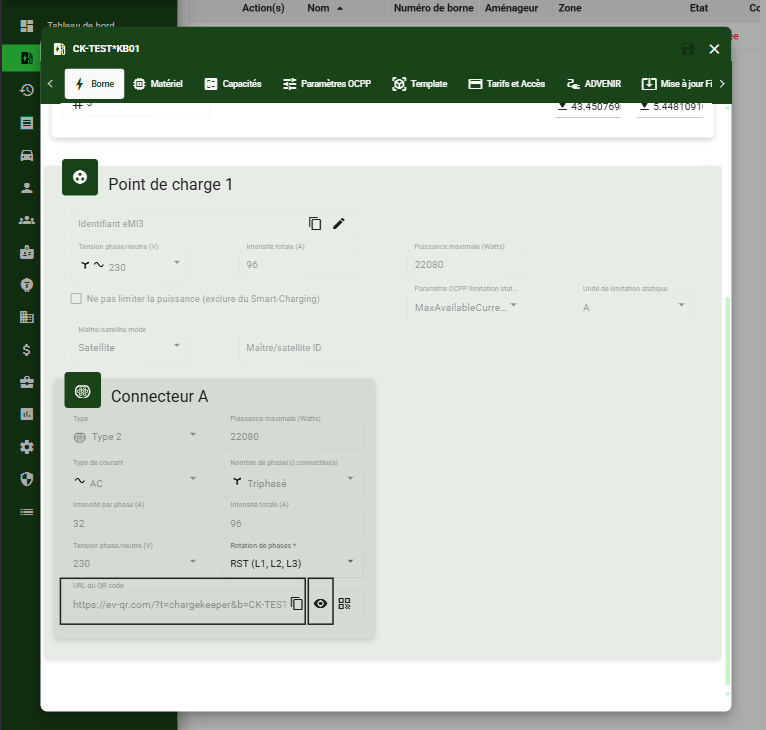
Access the station's QR code:
- Click the Charging stations tab
- Search for the desired charging station
- Click the pencil icon to edit the station
- Review each connector:
• View the QR code URL
• Click the eye icon to view the QR code.
Generating QR codes
You can manually generate QR codes (as a replacement for the generic QR code). For example, before creating the charging stations, in order to integrate them directly during factory manufacturing, or to launch bulk printing of QR codes before connecting the stations.
- Click the Charging stations tab
- Select the QR codes sub-tab
- Click Generate QR codes
- Specify the desired quantity: 50, 100, 500, 1000
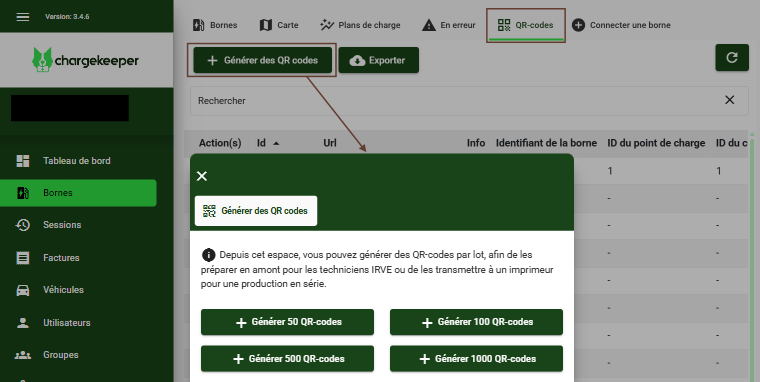
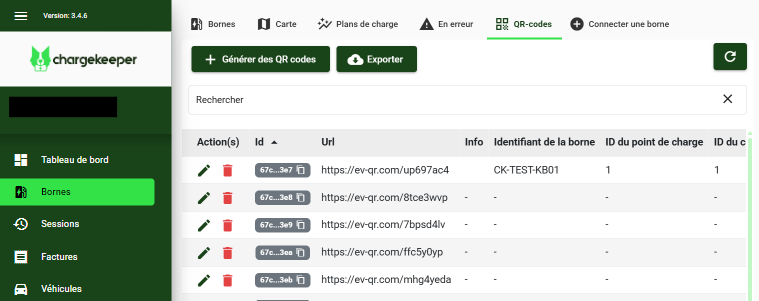
The QR code list is populated by the newly bulk-generated ones. QR codes that are not associated with a charging station identifier can be used to perform an association.
Associating an unassigned QR code from a charging station
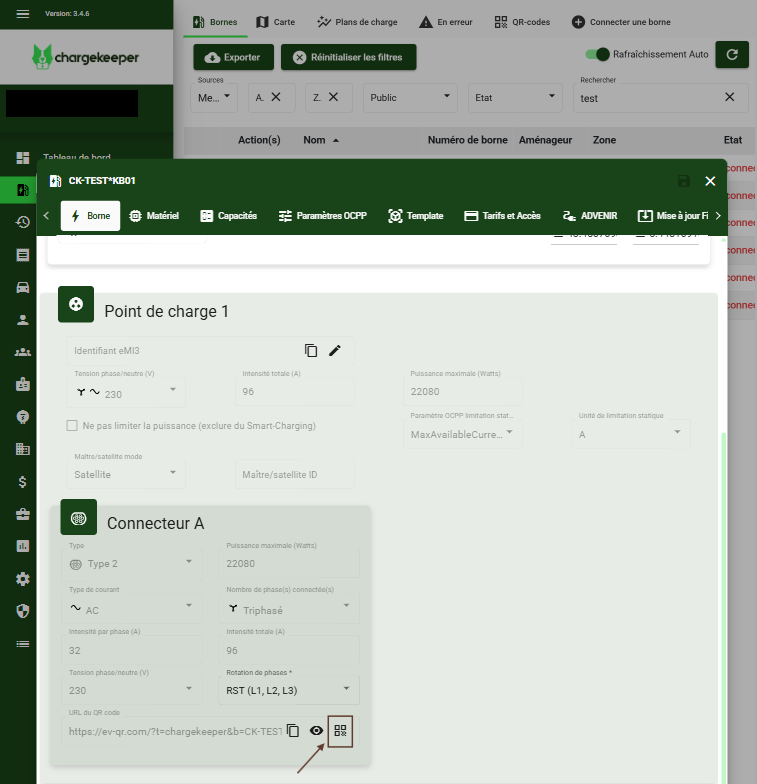
Associating the QR code is possible from a charging station by following these steps:
- Click the Charging stations tab
- Search for the desired charging station
- Click the pencil icon to edit the station
- Choose a connector and click the icon to edit the QR code
- Allow camera use from the browser
- Scan the QR code
The QR code URL and image will then be updated and visible from the connector.
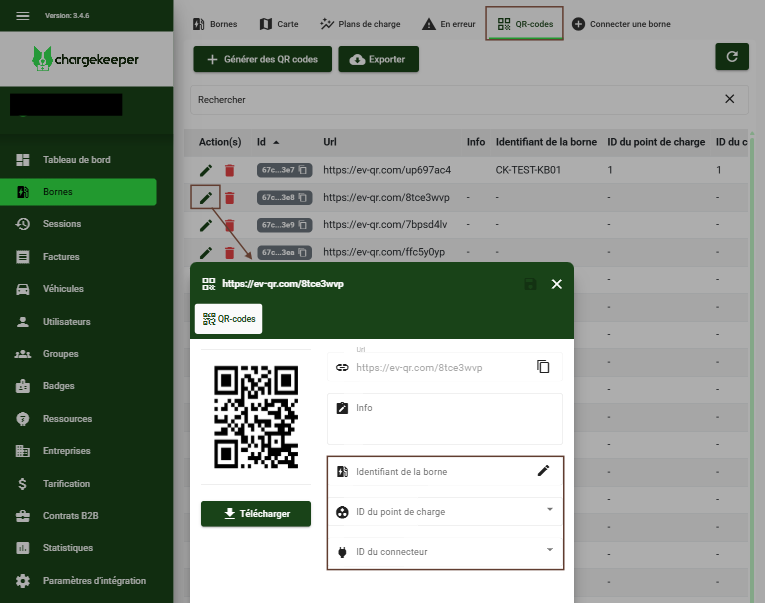
Associating a charging station and a connector from an unassigned QR code
Associating a charging station from a QR code is possible by following these steps:
- Click the pencil icon to edit the QR code
- Search for and select the charging station to associate
- Choose the charge point and the connector
- Click Save (the floppy disk icon) to confirm the association.
Support
For any questions or assistance, contact our support team at support@charge-keeper.com.
